
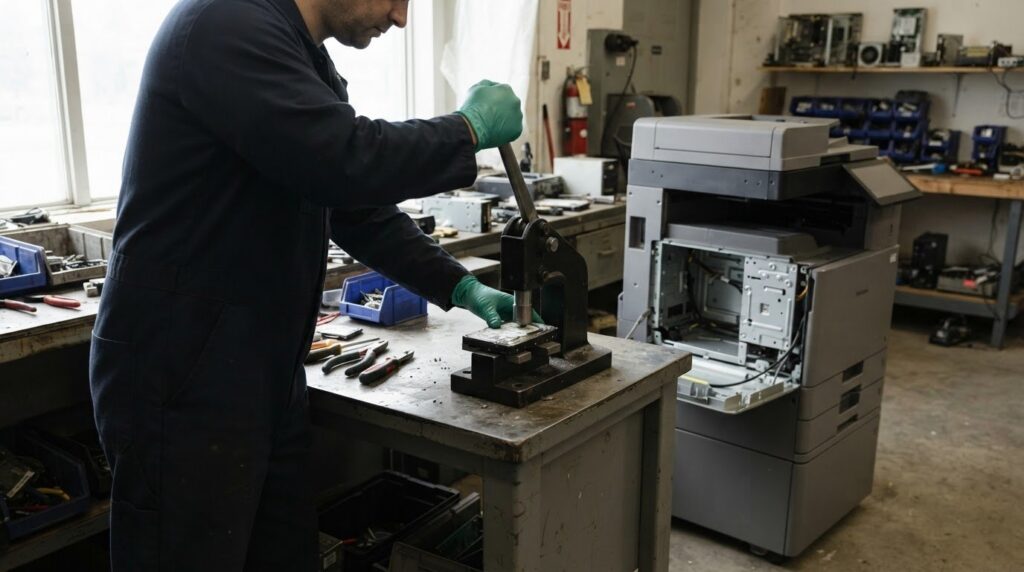
A multifunction printer can retain more than print settings. Its internal storage may hold print jobs, scanned documents, fax transmissions, email attachments, authentication data and address books. Knowing how to sanitize a multifunction printer’s internal hard drives starts with treating that information as sensitive, whether the device is being returned, sold, donated or recycled.
A reset or file deletion may seem sufficient, but either can leave data recoverable. Secure sanitization depends on the storage type and whether the printer will be reused. Encryption can help protect data, verified overwriting can sanitize suitable media, and physical destruction is an option for highly sensitive data or drives that will not be reused. This article explains what multifunction printers can store, how to approach wiping or destroying their drives, and what to consider at end of service so your organization can protect information and make a responsible decision about reuse or recycling.
Key Takeaways
- Identify the kinds of information a multifunction printer may retain, including scanned files, fax transmissions and address-book data.
- Treat encryption as one layer of protection, not a replacement for secure end-of-service wiping.
- According to the Canadian Centre for Cyber Security, overwrite and secure erase uses software to write 3 or more series of random binary code to storage media to prevent recovery of previous data.
- Choose between wiping and physical destruction based on the storage type, sensitivity of the information and whether the drive will be reused.
Hard-drive encryption and end-of-service wiping
Plan for end of service before a multifunction printer leaves its current location. The storage type, encryption history and intended reuse all affect the right sanitization process.
-
How a provider identifies the MFP storage device and sanitization options
Provide the printer’s make, model and service status, and say whether it is leased, retained, sold, donated or recycled. These details help identify the installed storage device and manufacturer-supported options for that model. Share any known configuration information, including whether encryption was enabled from the drive’s first use. A sound process for how to sanitize multifunction printer internal hard drives starts by identifying the actual media, not assuming every model has the same controls.
-
How a provider selects among supported erase methods
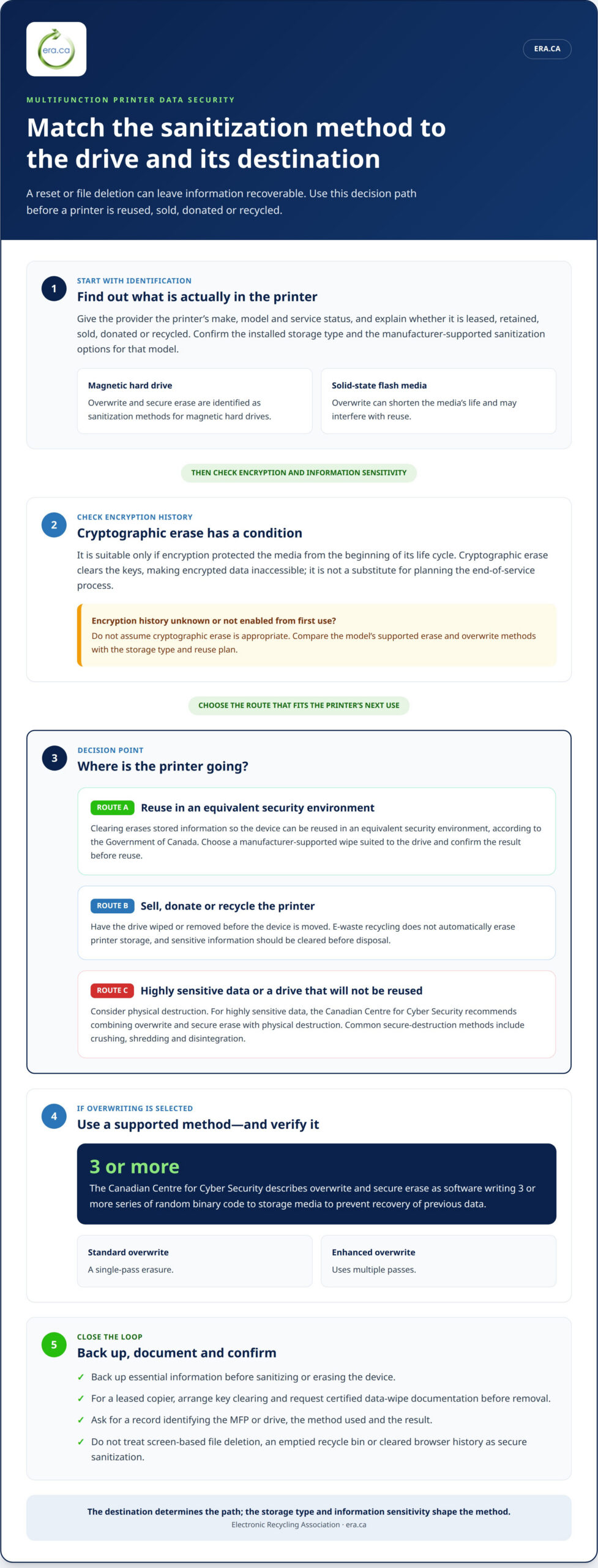
Compare the model’s supported erase, overwrite and cryptographic erase methods. Manufacturer-supported erasure uses the device’s available controls; overwriting replaces stored data, while cryptographic erase makes encrypted data inaccessible by clearing its keys. The appropriate method depends on storage type, encryption history, information sensitivity and reuse plans. Cryptographic erase is suitable only if encryption protected the media from the beginning of its life cycle.
- Back up essential information before sanitization. The Canadian Centre for Cyber Security advises backing up a device before sanitizing or erasing it, so needed files are not lost. For a leased copier, arrange key clearing and request certified data-wipe documentation before removal. Deciding how to sanitize multifunction printer internal hard drives also means accounting for the device’s destination after service.
- Decide where the printer is going before it is moved. If the MFP will be reused, choose a supported wipe suited to its storage and security needs. If it will be sold, donated or recycled, have its drive wiped or removed first. E-waste recycling does not automatically erase data, and the Canadian Centre for Cyber Security advises confirming that sensitive information is cleared before disposal.
Overwrite and secure erase
Choose overwriting only after the provider identifies the MFP’s storage type and reuse plan. The process and verification should match the device.
-
How a provider securely erases or sanitizes an MFP internal hard drive
Ask the provider to use a manufacturer-supported erase process suited to the MFP’s drive. Standard overwrite is a single-pass erasure; enhanced overwrite uses multiple passes. According to the Canadian Centre for Cyber Security, overwrite and secure erase uses software to write 3 or more series of random binary code on storage media to prevent recovery of previous data. A secure MFP configuration may also erase job data immediately after completion.
- Ask how the storage type affects the method. The Canadian Centre for Cyber Security identifies overwrite and secure erase as sanitization methods for magnetic hard drives, but warns that they shorten the life of solid-state flash media and may interfere with reuse. For highly sensitive data, it recommends combining overwrite and secure erase with physical destruction. Select the method based on the MFP’s media and intended destination.
-
How a provider verifies the sanitization result
Before returning a leased copier, require confirmation that its hard-drive overwrite is complete. Request documentation that identifies the MFP or drive, the method used and the result. This gives your organization a clear record of the sanitization, rather than relying on a screen message or the fact that files appear deleted.
- Use the result to guide the next step. If the drive is suitable for reuse, the documented overwrite should be complete before the equipment changes hands. If it contains highly sensitive data, pair software erasure with physical destruction. For organizations arranging secure data destruction, this approach helps align data protection with responsible equipment handling.
Wiping or destroying printer hard drives
Choose the destination first: reuse, donation, recycling or destruction each calls for deliberate treatment of stored data.
- Ask for a clear distinction between clearing, purging and destruction before work begins. According to the Government of Canada, clearing erases stored information so a device can be reused in an equivalent security environment. Purging is a stronger sanitization approach intended to prevent data recovery, while destruction physically damages the storage media.
- Match the method to the information and the printer’s next use. Clearing may be suitable for a device being reused in an equivalent security environment. If a printer containing highly sensitive information will not be reused, consider physical destruction. The Canadian Centre for Cyber Security identifies crushing, shredding and disintegration as common secure-destruction methods.
- Do not mistake file deletion for sanitization. Deleting files through an MFP screen, emptying a recycle bin or clearing browser history can leave recoverable data on the drive. E-waste recycling does not automatically erase printer storage, so arrange sanitization before the device is sold, donated or recycled.
- Use a trusted destruction facility when physical destruction is appropriate. The Canadian Centre for Cyber Security cautions that a hammer or drill usually makes equipment non-functional rather than securely destroying its media. A suitable destruction process helps keep sensitive information from travelling with equipment intended for recycling.
- Make sure the final destination matches the sanitization result. If the drive is cleared for reuse, handle the printer accordingly; if its media is destroyed, retain a record of the work. Degaussing is not suitable for solid-state storage, including flash-based devices such as USB keys, so the storage type matters when selecting a destruction method.
Which multifunction printers store data on internal hard drives or flash memory?
Treat multifunction printers as potential storage devices from the outset. Most modern MFPs include an internal hard drive or solid-state storage, and their functions can leave information stored beyond a single job.
- Identify the printer’s make and model, then determine its installed storage type. An MFP may use a magnetic hard drive or flash-based storage, and the right sanitization method depends on that distinction. Do not assume two printers with similar control panels have identical storage or erasure options. Model-specific identification helps shape an appropriate end-of-service plan.
- Account for every function the device performs. Print jobs, scanned documents, email attachments and fax transmissions may be stored temporarily. An MFP used for scanning and faxing can therefore retain different content from a printer used only for basic print jobs. Include the machine’s full range of functions when describing its use and planning secure handling.
- Consider information beyond document images. MFP storage may also contain user authentication data and address books, potentially exposing account details or contact information. For example, a shared office printer may retain saved recipient entries alongside completed scan jobs. Include these records in the sanitization scope, not just visible documents or queued print jobs.
- Connect the storage assessment to the printer’s destination. A device being returned, sold, donated or recycled should have its stored information addressed before it leaves the organization. An internal hard drive and flash storage may require different approaches, so the provider’s model identification matters. For professional secure data destruction, include the MFP’s make, model and functions in the service details.
Electronic Recycling Association (ERA)
The Electronic Recycling Association (ERA) helps Canadian organizations manage end-of-service electronics while addressing data security and responsible reuse. ERA provides secure data destruction for organizations that need professional sanitization of a multifunction printer’s storage. Its free electronics recycling and pickup service can support the next step for equipment leaving service.
When a computer is suitable for reuse, charitable computer donations can extend its life and support community needs. The right route depends on the device’s condition, storage and intended destination. Share the printer’s model and whether it is being retired, reused or recycled so data handling can be considered as part of its next step.
Contact Electronic Recycling Association (ERA) to discuss your organization’s printer and electronics end-of-service needs.
Make secure retirement part of your equipment plan
Build printer storage into your organization’s end-of-service process instead of treating data handling as a last-minute task. Assign responsibility for the handoff, record the device’s intended destination and keep sanitization evidence with the relevant asset records. This creates a clear path from daily use to retirement, reuse or recycling.
A documented approach to how to sanitize multifunction printer internal hard drives can also inform future purchasing and lease decisions. Include storage and end-of-service requirements in procurement discussions so your team understands how a device will be handled when it leaves service. Clear procedures help protect organizational information and support responsible equipment reuse.
For help planning the next step for your organization’s equipment, contact Electronic Recycling Association (ERA). A careful handoff is a practical way to support both information stewardship and responsible resource use.
Frequently Asked Questions
What is stored on the hard drive of your printers and photocopiers?
A multifunction printer may store print jobs, scanned documents, email attachments, fax transmissions, authentication data and address books. The information at issue depends on the machine’s functions and use. For example, an office that scans documents and sends faxes should include both activities in its storage assessment, not just printed pages. Consider saved contacts and user data alongside document content.
Copier Hard Drive Security: What Happens to Your Data?
Data may remain on a copier’s storage after a job finishes, so equipment transfers need a planned handoff. For a work device, the Canadian Centre for Cyber Security advises checking organizational information management policies before disposal. It also advises disconnecting unwanted devices from online accounts. Include these account and policy steps in your retirement process, alongside measures to address the printer’s internal storage.
Is Removing the Hard Drive an Option?
Yes. A printer’s drive can be removed when the machine will not be reused or when a government or defence-related environment calls for drive removal. Removing the storage device is not the same as sanitizing it; the media still needs appropriate handling. Track the removed drive and its intended treatment so it stays connected to the equipment’s disposal plan.
Is deleting the same as sanitization?
No. Deleting a job from the printer’s display or removing a file from a queue may leave its data recoverable on the storage media. Think of deletion as removing access through the interface, not as proof that the underlying information is gone. Sanitization addresses the stored data itself using a process suited to the media and its intended use.
What Happens When You Sell or Dispose of a Copier?
Before a copier changes ownership or enters e-waste recycling, account for its stored information and intended destination. The Canadian Centre for Cyber Security advises confirming that sensitive information is no longer on a device before e-waste disposal. For a work machine, follow organizational information management policies. Consider removable media separately, too, since resetting a device does not erase external memory cards or SIM cards.
What Happens to Your Data During Normal Operation?
During normal use, an MFP may temporarily store job information as it prints, scans, faxes or handles email attachments. Its storage may also hold authentication details and address-book entries used for routine tasks. The information at issue can therefore include both document content and operational records. Review every enabled function when assessing what data the machine may retain.